Creating a simple geological model with an Easy Grid
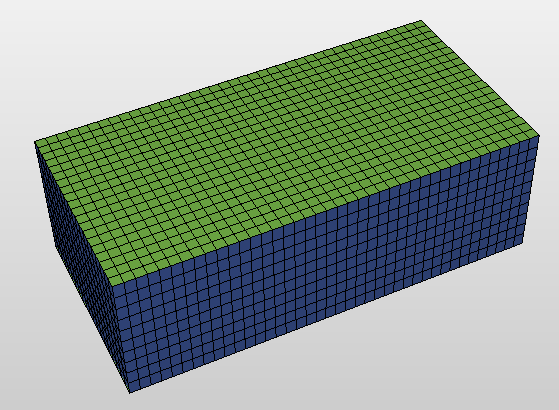
An Easy Grid click to enlarge
Sometimes you may not need to model surfaces and faults, only a simple and flat geological model. As an alternative to a JewelGrid, you can use a simple Cartesian-based grid, an Easy Grid, to do this. Faults are not modeled in Easy Grids, nor are horizons or markers taken into account. This results in a flat volume of cells. You can use an Easy Grid to quickly set up and test simple modeling, upscaling, and reservoir simulation scenarios.
To create an Easy Grid
- Open the Easy Grid form (model > 3D Grid > Grid Tools > Gridding)
- Under Select or specify new grid, select New and enter a name in the Name field for your new Easy Grid, or select Existing and select an existing grid that you want to recreate.
- From the Active area drop-down list, select an existing area, or click the Edit
 button to edit or define a new area. The Area tool appears. For details on how to use this, see Area tool.
 - Under Setup vertical dimensions, the start TVDSS of the grid in the TVDSS field and the vertical thickness of the reservoir (length) shown in Length are as set by the selected area. You can change these values to create a grid at a different depth or with a different vertical thickness. For Thickness, you can enter a different thickness for the layers, and for # of cells the number of cells in the vertical dimension. Thickness and # of cells are interrelated; if one is changed, the length or vertical dimension of the grid is changed.
-
Check the Generate geometry properties checkbox to create, apart from the default set of geometrical properties for each grid cell in the model, the following properties: Cell Top Depth, Cell Volume, I (index indicator), J (index indicator) and Stratigraphic Cell Thickness.
- Click Create to create the Easy Grid, and then Close to close the form.